
Introducing Multi-screen support for Jitsi Meet
A Jitsi Meet participant has always been one browser window showing one layout. Put that meeting in a conference room with a display on every wall, or on a desk with two monitors, and the extra screens show the same thing the first one does, or nothing at all.
Multi-screen, built as a Google Summer of Code 2026 project, changes that. A single Jitsi Meet session can now render onto more than one display: the active speaker on one screen, a screenshare on another, the whiteboard on a third, without joining the conference twice.
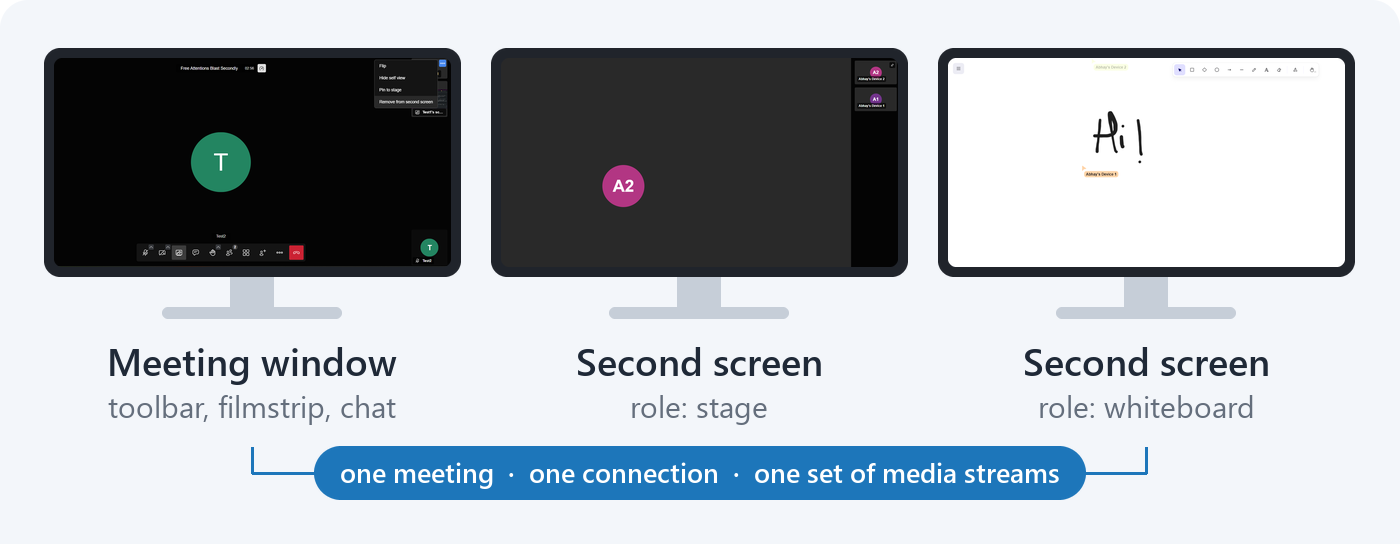
Why not just open the room twice?
Plenty of room deployments do exactly that today. It works, but a second tab is a second participant: it shows up in the roster, it subscribes to and decodes its own copy of every stream, its audio has to be muted by hand, and nothing keeps the two windows in step.
A second screen is a rendering surface on top of the meeting you are already in. One connection to the bridge, one set of media subscriptions, no extra audio path. Nobody else in the meeting can tell it happened.
What a second screen can show
- The stage, which follows the active speaker and honors pins
- A tile grid of every participant
- A screenshare, selectable by participant when several people are sharing
- The whiteboard
- A shared video, either YouTube or a direct link
Each of these is a role rather than a fixed stream. A window showing the stage re-points itself as people talk, and a tile grid updates as participants join and leave.
How it works
The interesting problem was rendering into a window the app does not own. A popup opened with window.open is a separate document, but a React portal will happily mount a component tree inside it. So a second screen is not a second app or a copy of anything: it is the same redux store and the same components, rendered through a portal into the popup.
Two things needed special handling:
- Styling. Emotion injects CSS into the document it was created for, so each window gets its own style cache pointed at its own document head. Without it, the portal renders unstyled.
- Media. Attaching the meeting window’s media stream to a video element in another window crosses a realm boundary, so each video clones the track and wraps the clone in the popup’s own constructor.
clone = track.clone();
video.srcObject = new win.MediaStream([ clone ]);
Cloning is cheap and adds no extra decode. It also gives the window a lifetime the feature controls: when the component unmounts, the clone stops.
Driving it from the iframe API
Multi-screen was built for room appliances: displays on the walls and no mouse in the room. So it is controlled through the iframe External API, with one command and three events. The API groundwork landed first, in #17527 by Emil Ivov, and the rendering layer was built on top of it.
// Put the active speaker on one display...
api.executeCommand('setSecondScreen', {
    id: 'wall-left',
    source: { role: 'stage' }
});

// ...and the screenshare on another.
api.executeCommand('setSecondScreen', {
    id: 'wall-right',
    source: { role: 'screenshare' },
    screen: 2
});

// Leaving out the source closes the window.
api.executeCommand('setSecondScreen', {
    id: 'wall-right'
});
The window ids belong to the embedder, so a room controller can address its displays by name and re-target them at any point. Three events report back:
secondScreenSourceChanged: what a window actually resolved tosecondScreenClosed: a window went awaysecondScreenError: a window could not be opened, with one of six error codes
Driving it from inside the meeting
The command covers displays that were configured in advance. The more ordinary case is somebody in a normal meeting with a second monitor. For that, every place in the UI that shows something worth sending now offers to send it: participants get a Show on second screen entry in their context menu, and the screenshare and shared-video thumbnails get a button on hover. Clicking again takes it back.
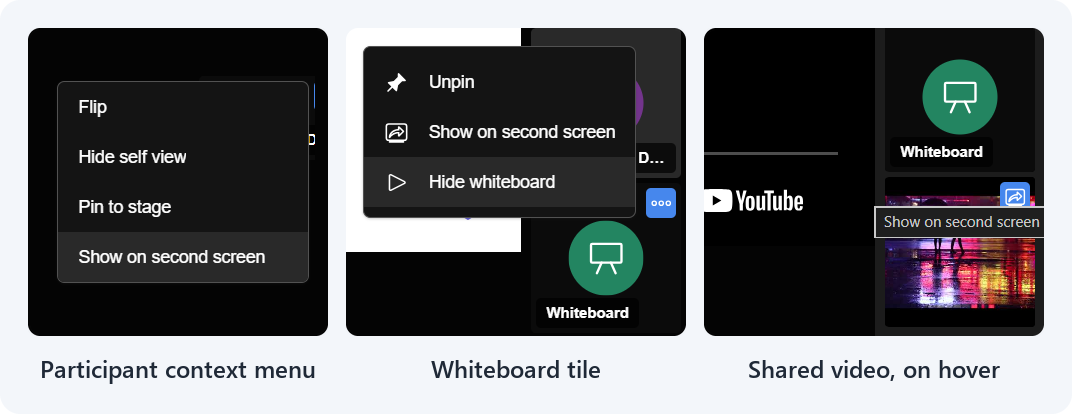
A send never disturbs something you are already watching. It fills a free external display first, and only reuses a window once every display has one. The in-app triggers dispatch the same action as the API command, so an embedder listening to the events sees in-app activity too.
Good to know
- Chromium only. Placing a window on a specific display needs the Window Management API, which today means Chromium-based browsers such as Chrome and Edge.
- Two permissions. The site has to be allowed to open pop-ups and to manage windows. Without the second, the window still opens, but the browser decides where it lands.
- The prompt needs a click. Chromium only shows the window-management prompt after a user gesture. The in-app triggers have one. An API command does not, so room appliances should grant the permission by policy.
- Sources can come back. When a participant drops, their window waits a few seconds before closing, so a brief reconnect does not take the screen down with it.
Try it
Multi-screen is off by default. Deployments opt in through config:
secondScreen: {
    enabled: true
}
To try it without deploying anything, add #config.secondScreen.enabled=true to a room URL on beta.meet.jit.si, then open any participant’s context menu. The command, the events and the error codes are documented in the handbook.
The work
- #17547: React portal rendering layer
- #17581: stage, tile and gallery layouts, and the whiteboard as a source
- #17598: gate the whiteboard second screen on whether the whiteboard is open
- #17615: shared video as a second-screen source
- #17666: in-app triggers
- #17715: iframe API specs and a manual test checklist
- handbook#683: API documentation
This work was done as part of Google Summer of Code 2026, mentored by Tudor Avram and Cosmin-Alexandru Timis. Thank you to both for the reviews, several of which changed a design rather than a line, and to the Jitsi community for a summer of work on something I get to keep using.